
SWS Appointment Manager Documentation
Official Repository WordPress.org
SWS Appointment Manager Plugin Documentation
Installed “SWS Appointment Manager” from WordPress.org?
The free plugin SWS Appointment Manager is available on the official WordPress Plugin Repository. Appointment Management PRO is the advanced commercial edition with powerful features for businesses and agencies.
Want to see the plugin in action before purchasing?
Access the Live Demo and evaluate the actual user experience of Appointment Management Pro – SWS. Explore the interface, test the booking logic, and understand how the plugin performs in a practical WordPress setup.
Why choose PRO instead of Free?
The Free version is perfect to get started. PRO is built for when your booking system becomes part of your real business workflow, with staff, automation, routing and advanced operational control.
- ✓Basic booking system
- ✓Simple workflow structure
- ✓Core Google Calendar sync
- ✓Standard booking management
- ✓Great for testing and first deployments
- ✓Staff Management
- ✓Per-type Google Calendar mapping
- ✓Custom Fields Builder
- ✓Advanced email notifications
- ✓Reminder emails and WhatsApp integration
- ✓Google Meet in notifications
- ✓Type + Calendar filters
- ✓Silent bulk cleanup
- ✓Overbooking protection
- ✓Advanced booking management
Introduction
Appointment Management Pro – SWS is a professional multi-location appointment management system for WordPress. Designed for doctors, consultants, beauty salons, and offices with reception desks, it offers Google Calendar sync, email reminders, WhatsApp integration, and a frontend admin panel for direct booking management.
System Requirements
Installation
- Download the .zip file from your customer account at swsplugins.com
- In WordPress: Plugins → Add New → Upload Plugin
- Select the .zip file and click Install Now
- Activate the plugin
- Configure via Appointments SWS → Settings
Main Shortcodes
Use these shortcodes to embed the plugin in your pages:
[wpappsws_book_appointment_selector]
→ displays all appointment types
[wpappsws_book_appointment id="123"]
→ displays a specific type (use the Shortcode Generator to find the ID)
[wpappsws_admin_appointments_list]
→ displays appointments on the frontend (admins only)
[wpappsws_admin_appointments_calendar]
→ shows Google Calendar-style appointments (admins only)
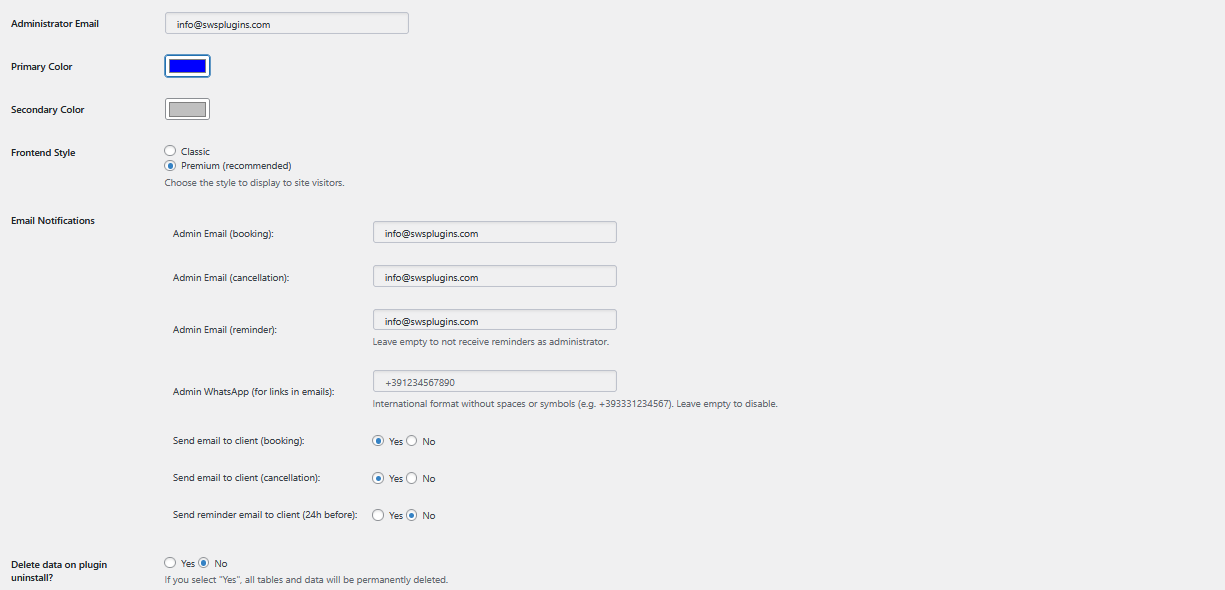
Admin interface – Advanced Settings
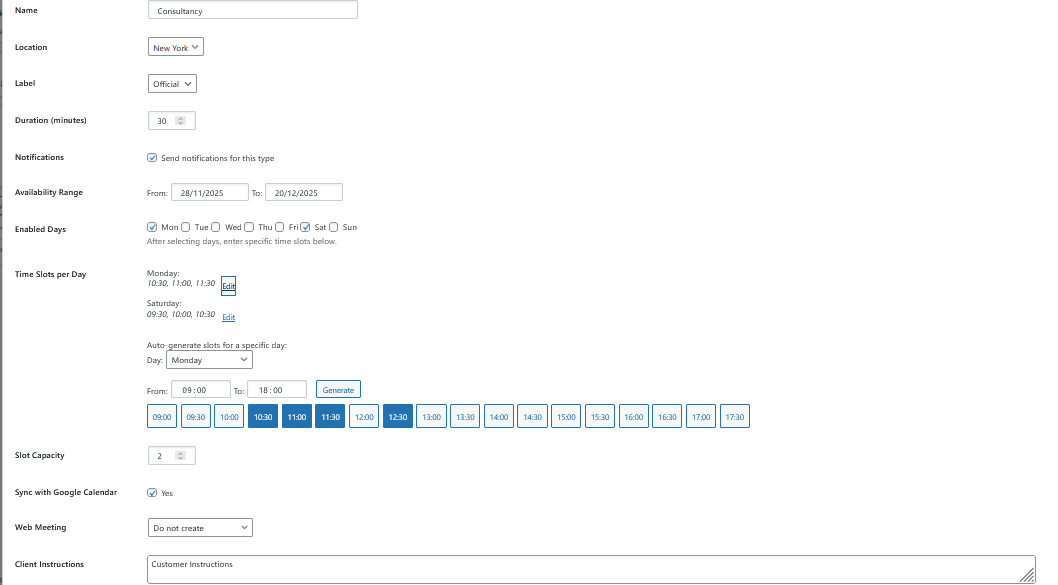
Appointment Types
Google Calendar
Email Notifications
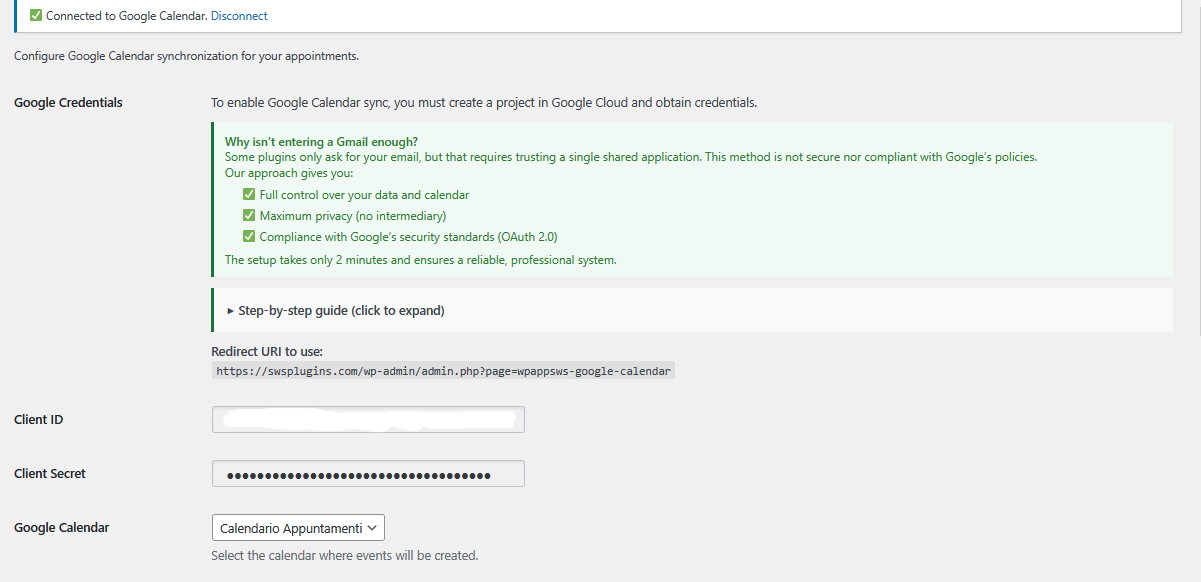
Frontend Admin Panel (v2.1.8+)
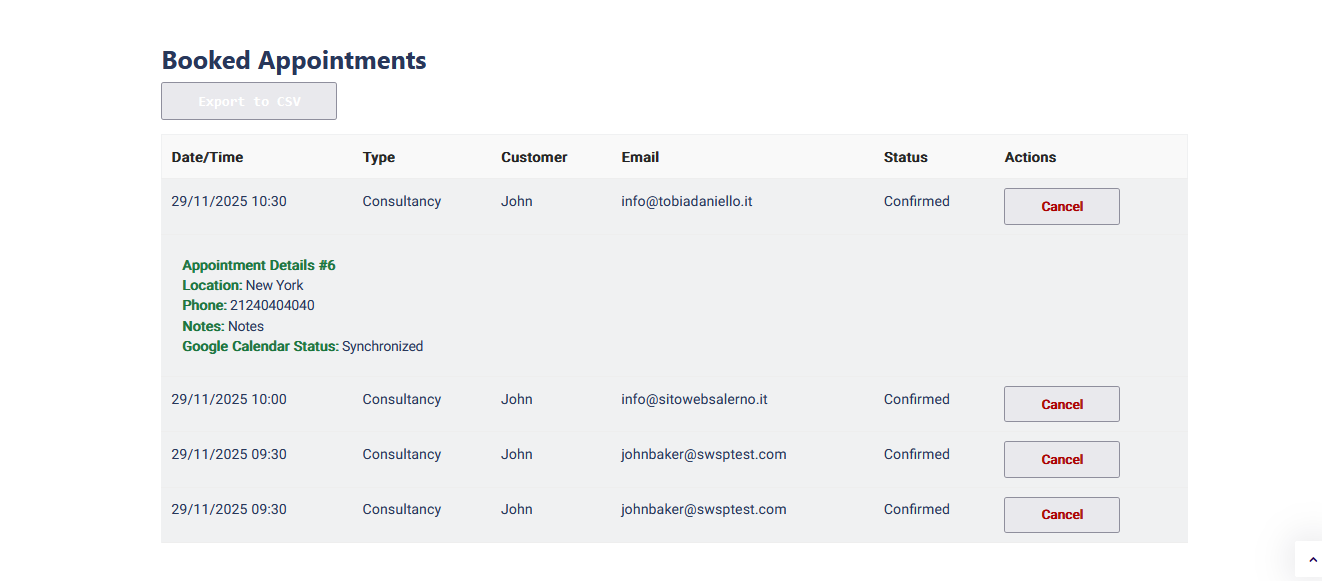
Google Calendar-style calendar (v 2.2.6)
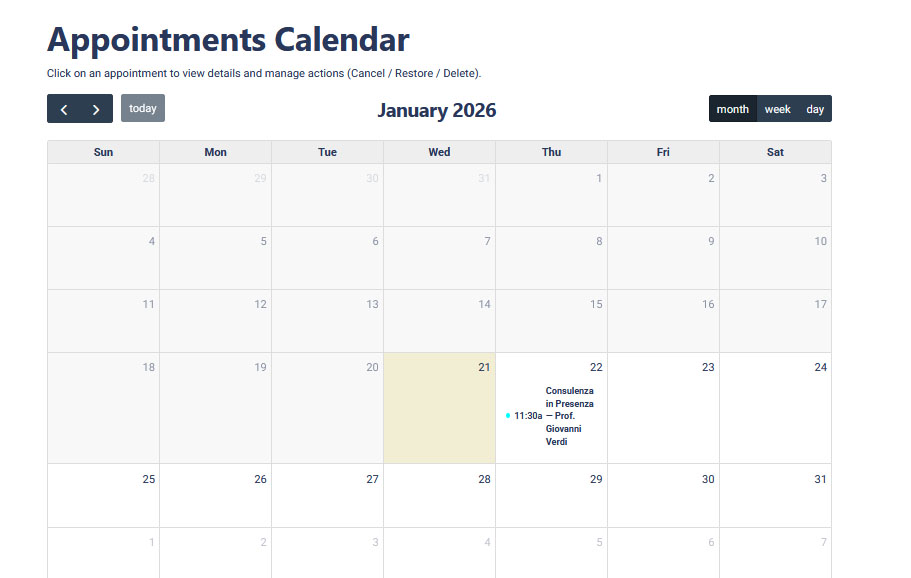
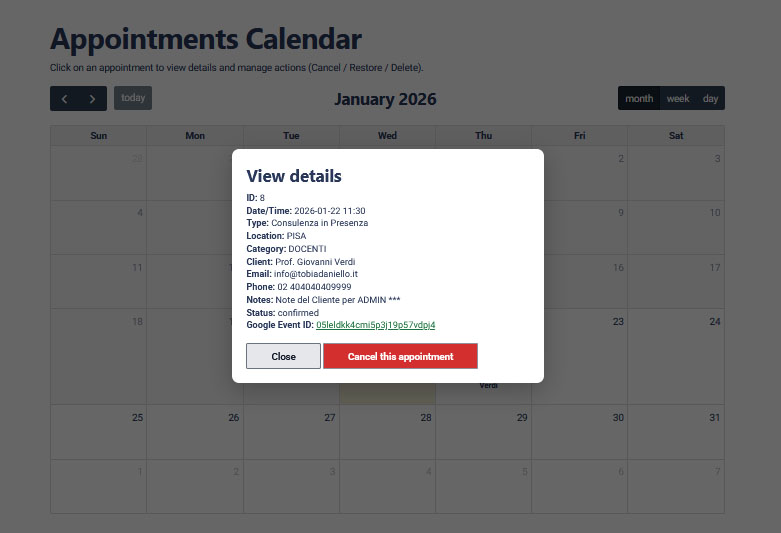
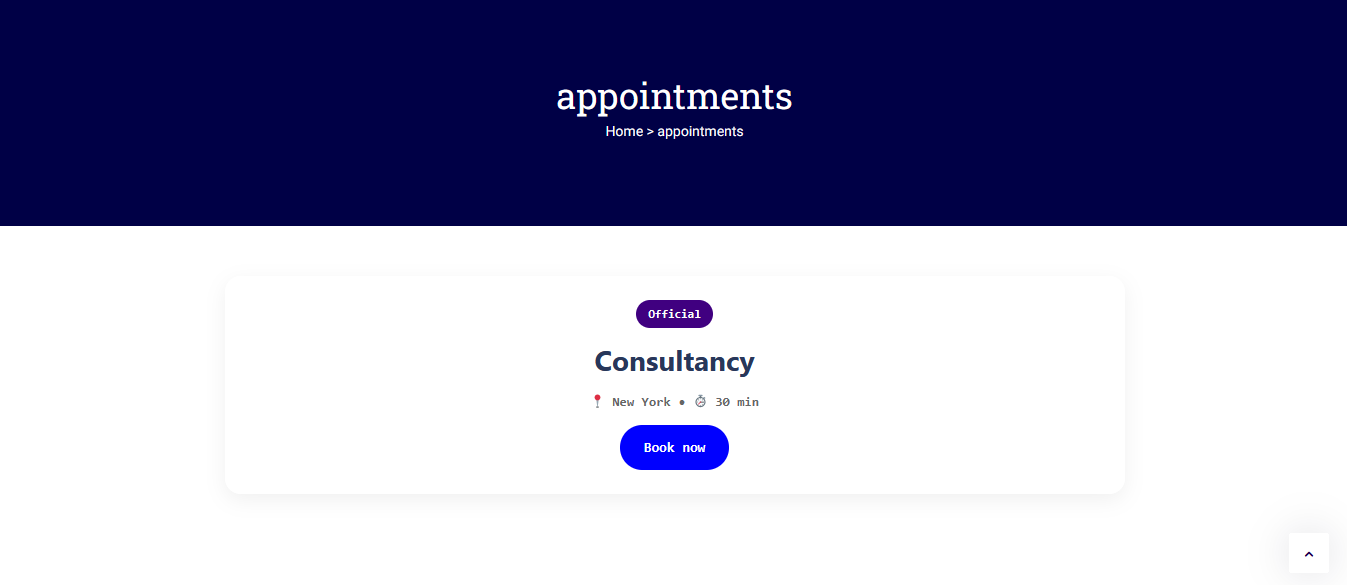
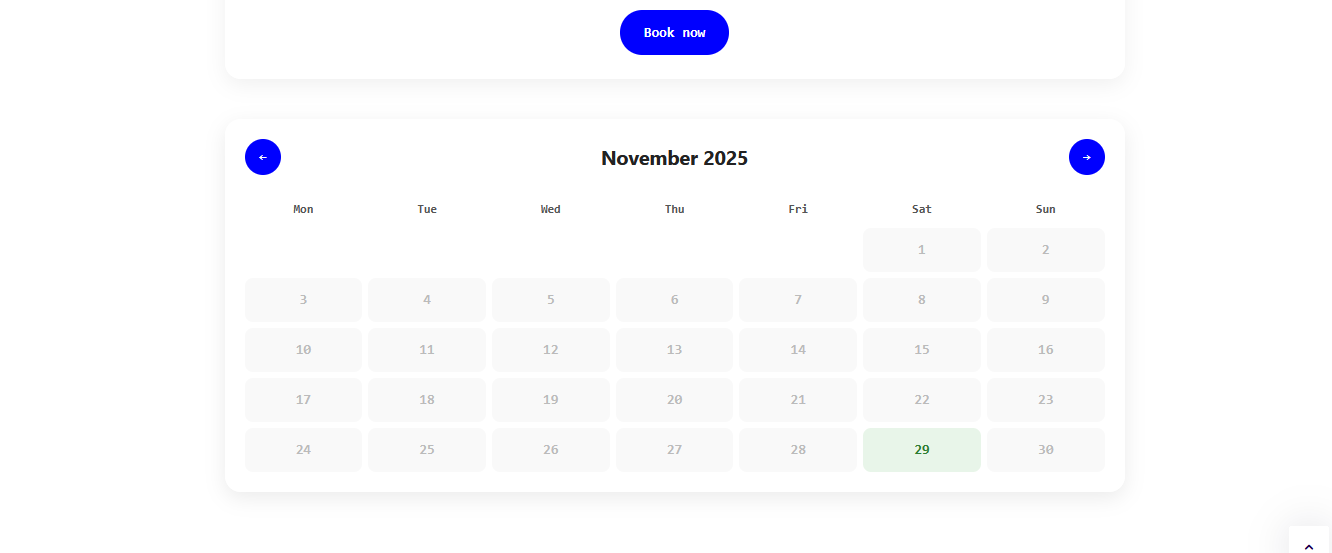
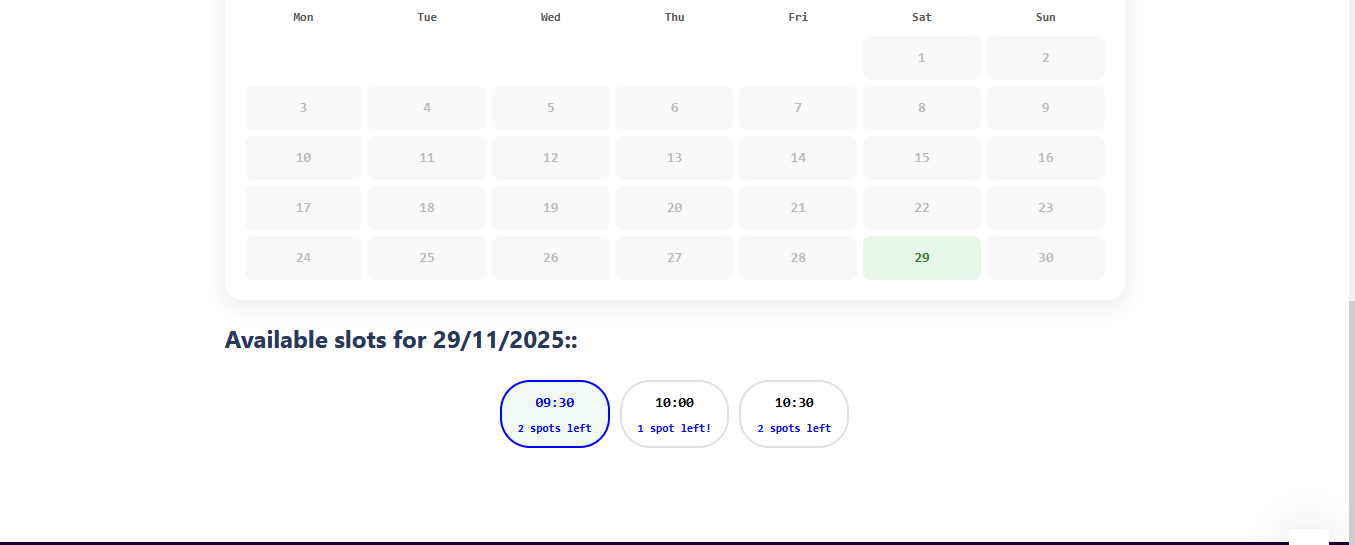
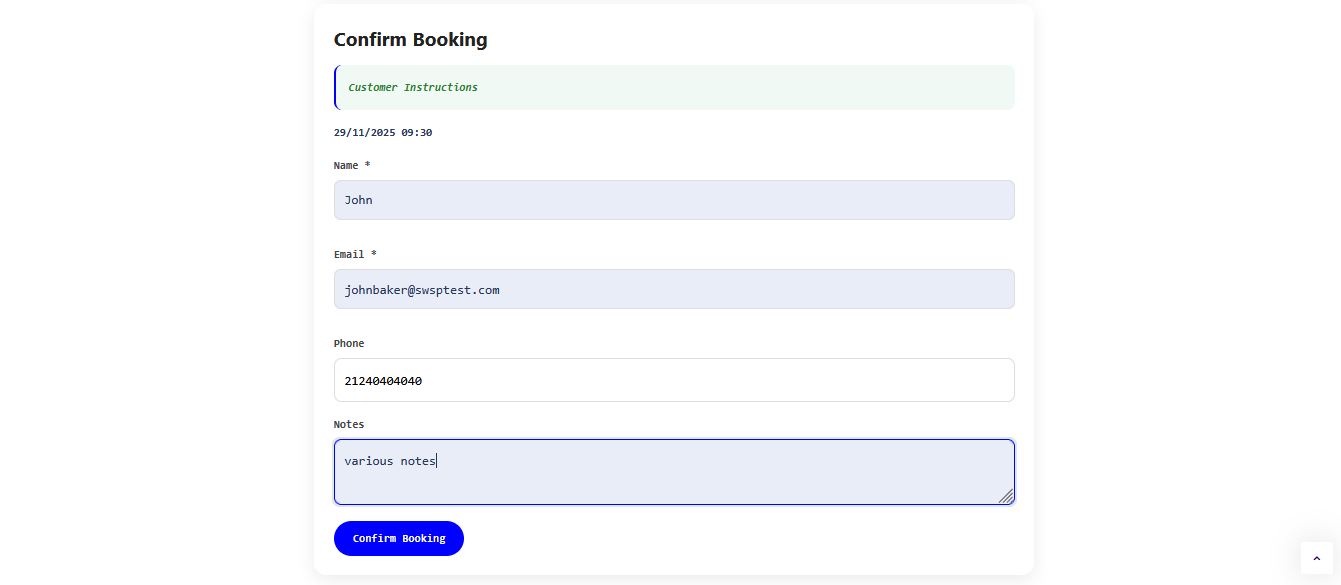
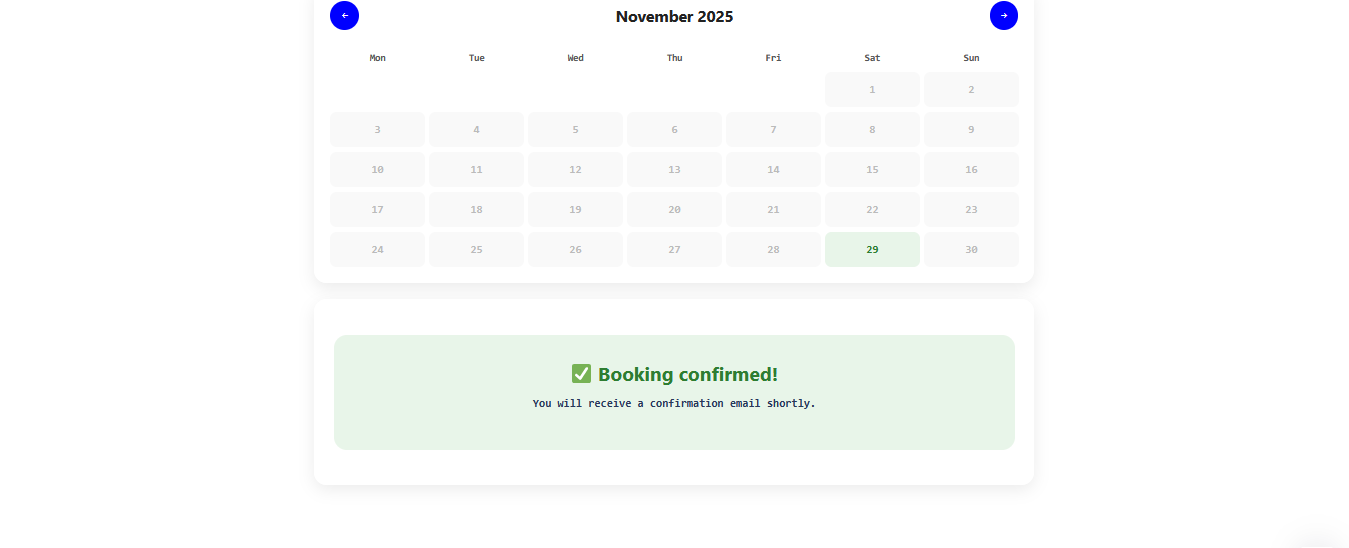
Frontend Style
Translations
Technical FAQ
Q: How do I get Google Calendar credentials to set up in the plugin?
Q: Why isn’t Google Calendar sync working?
Q: Can I disable or enable the 24-hour reminder?
Q: Is the plugin compatible with caching?
Q: What happens if I uninstall the plugin?
Enjoying SWS Appointment Manager?
If this plugin is helping you manage your appointments, a quick review on WordPress.org would really help the project grow.
Leave a ReviewWhy Appointment Management PRO is ahead of the WordPress.org version
The WordPress.org edition is designed as a clean entry point for users who want to explore the core booking workflow. The PRO version goes significantly further, with staff workflows, custom data collection, smarter Google Calendar routing, premium communication tools and stronger admin control for real business use cases.
- Core appointment booking workflow
- Basic Google Calendar integration
- Good starting point for evaluation
- Standard booking structure
- Designed as a stable entry-level version
- Staff Management
- Per-type Google Calendar mapping
- Custom Fields Builder
- Advanced email notifications
- Reminder emails & WhatsApp integration
- Google Meet in notifications
- Type + Calendar filters
- Silent bulk cleanup
- Overbooking protection
- Advanced booking workflow tools
| Feature | Free | PRO |
|---|---|---|
| Core booking flow | ✓ | ✓ |
| Google Calendar integration | Basic | Advanced |
| Staff Management | — | ✓ |
| Reminder emails | — | ✓ |
| WhatsApp integration | — | ✓ |
| Per-type Calendar Mapping | — | ✓ |
| Custom Fields Builder | — | ✓ |
| Google Meet in notifications | — | ✓ |
| Type + Calendar filters | — | ✓ |
| Silent bulk cleanup | — | ✓ |
| Overbooking protection | — | ✓ |
| Advanced workflow improvements | Limited | Extended |
| Product roadmap evolution | Repository baseline | Faster commercial roadmap |
Upgrade from Free to PRO in 3 simple steps
Moving from the WordPress.org Free version to Appointment Management PRO is designed to be simple and straightforward. The goal is to help you unlock advanced features without unnecessary friction.
Ready to explore the full potential of the plugin?
Discover all features, choose the best plan for your business, and get started with Appointment Management PRO for WordPress.
Cart ( 0)
- Your cart is empty.
Cookie Consent
We use cookies to improve your experience on our site. By using our site, you consent to cookies.
Cookie Preferences
Manage your cookie preferences below:
Essential cookies enable basic functions and are necessary for the proper function of the website.
These cookies are needed for adding comments on this website.
These cookies are used for managing login functionality on this website.